Keyword lists pick up odd characters wherever they come from: registered trade mark symbols from product names, curly apostrophes from web pages, bullet points from copied notes and square brackets from Google Ads. Before you group or count anything, it pays to remove special characters that don’t belong, without wrecking the ones that do. This guide shows you how to tell the difference and clean the list properly.
I built Keyword Scrubber, the free tool used in this guide, and every result described here was tested against its code in November 2026.
What counts as a special character in a keyword list
In practice, a special character is anything other than a letter, a number or a space. Some are formatting leftovers and others are part of the keyword itself, so the job is knowing which to remove, which to replace and which to keep. Here’s a realistic list for a home baking site, gathered from a mix of tools and web pages:
"banana bread"
[sourdough discard recipes]
• proving basket
1. sourdough starter
kitchenaid® stand mixer
baker’s yeast
gluten-free bread
bread & butter pudding
crème pâtissière recipe
is 00 flour the same as plain flour?
If you want to follow along, copy the list and paste it into Keyword Scrubber, or into a spreadsheet.
Why stray characters cause problems
Stray characters do damage in three ways.
They hide duplicates. baker’s yeast with a curly apostrophe and baker's yeast with a straight one look the same to you, but a spreadsheet treats them as two different keywords. The same goes for ‘kitchenaid® stand mixer’ and ‘kitchenaid stand mixer’. Your counts come out wrong and duplicates slip through.
They can trip up imports. Commas and quotation marks have a special job in CSV files. A properly formatted file handles them safely, but not every tool reads them correctly, and when one doesn’t, a keyword can split across two columns or run into the next row.
They’re leftovers, not keywords. Nobody searches for ‘• proving basket’. The bullet, the ‘1.’ and the brackets are formatting from wherever the list came from. The quotation marks and brackets are Google Ads match-type symbols, which you’ll see if a list has been through an ad campaign.
Before you remove special characters, decide what to keep
This is the step that matters most. Stripping every symbol blindly turns some keywords into something nobody searches for. Go through the characters in your list and put each one into one of three groups.
| Character | Example | What to do |
|---|---|---|
| Remove | ||
| Quotation marks and square brackets | [sourdough discard recipes] | Remove |
| Bullets and list numbering, such as a ‘1.’ at the start of a line | 1. sourdough starter | Remove, including the number |
| Trade mark symbols ® and ™ | kitchenaid® stand mixer | Remove |
| Question marks and full stops | is 00 flour the same as plain flour? | Remove |
| Replace | ||
| Curly apostrophes | baker’s yeast | Replace with a straight apostrophe if you’re keeping them, otherwise remove |
| Hyphens | gluten-free bread | Replace with a space |
| Ampersands | bread & butter pudding | Replace with ‘and’ |
| Keep | ||
| Accented letters | crème pâtissière recipe | Keep |
| Numbers that are part of the keyword, not list numbering | is 00 flour the same as plain flour | Keep |
Your list will differ, and so will some of your decisions. A site about programming would keep the plus signs in ‘c++’ and the hash in ‘c#’, for example. The principle stays the same, though: a character goes only if the keyword means the same thing without it.
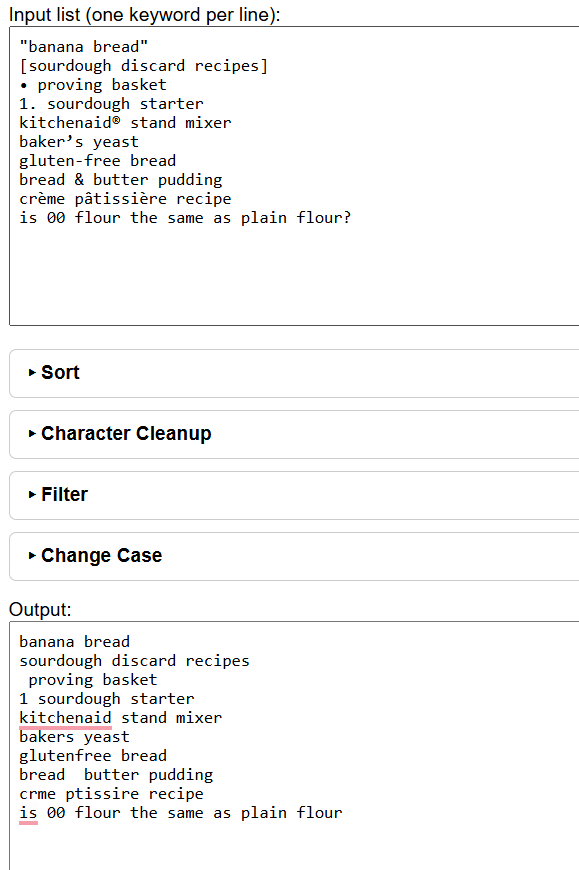
Step 1: Find out which characters are in your list
Before you change anything, save an untouched copy of the original list and work on a duplicate. A bulk strip or a Find and Replace across a whole sheet is hard to undo once you’ve saved, and you’ll want the original to check against.
Sort the list alphabetically first. Lines that start with a symbol or a number bunch together at the top or bottom of the list, which makes leftovers such as bullets and list numbering easy to spot. Check both ends, because not every symbol sorts the same way.
Characters in the middle of a line are harder to see. The quickest check is to search for each suspect character in turn, using Find (Ctrl+F) in a spreadsheet or a filter in a list tool. Try ®, ™, &, -, the curly apostrophe ’ and any accented letters you expect in your niche. You can’t easily type a curly apostrophe, so copy one from your list and paste it into the search box.
Step 2: Replace the characters that carry meaning
Deal with the ‘replace’ group before you strip anything, because a bulk strip will delete them instead. Use Find and Replace (Ctrl+H in both Excel and Google Sheets):
- If you want to keep apostrophes, replace the curly apostrophe
’with a straight one'. If you’re going to strip all apostrophes later, skip this one. - Replace
-with a single space, so ‘gluten-free bread’ becomes ‘gluten free bread’ rather than ‘glutenfree bread’. - Replace
&withand, keeping a space either side, so ‘bread & butter pudding’ becomes ‘bread and butter pudding’.
Replace with a space or a word, never with nothing, whenever the character sits between two words. Deleting it outright joins the words together.
Step 3: Remove special characters in bulk
Once the characters you care about have been replaced, the rest can go in one pass. A spreadsheet can do this, but it takes a long formula or several rounds of Find and Replace, one character at a time. A list tool with a strip-symbols option does it in one click (see the Keyword Scrubber section below).
Watch out for list numbering. Most symbol strippers keep numbers, so ‘1. sourdough starter’ comes out as ‘1 sourdough starter’. If you strip numbers as well, you also lose the ’00’ in ’00 flour’. Remove numbered prefixes by hand, or with a separate pass, before you decide what to do about numbers in general.
Step 4: Deal with spaces you can’t see
Two kinds of space cause trouble after a clean-up.
Double spaces. When a symbol sits between two spaces, removing it leaves both spaces behind. Use Find and Replace to swap two spaces in a row for one, and repeat until it finds nothing, in case some lines had three.
Non-breaking spaces. Text copied from web pages often contains a non-breaking space, which looks exactly like a normal space but isn’t one. Excel’s TRIM function removes extra ordinary spaces, but Microsoft’s own documentation confirms it doesn’t remove non-breaking spaces. Use =TRIM(SUBSTITUTE(A2,CHAR(160),” “)) instead, which works in both Excel and Google Sheets. It turns non-breaking spaces into normal ones, then tidies the result. Do this in the spreadsheet even if you use a list tool for everything else, because most tools treat a non-breaking space as an ordinary one and leave it alone.
If you suspect other invisible characters, compare =LEN(A2) with what you can see. A keyword that looks like 13 characters but counts as 14 has something hidden in it.
How to remove special characters with Keyword Scrubber
Keyword Scrubber is a free tool that runs entirely in your browser, so your list is never uploaded anywhere. Its Character Cleanup section handles the bulk strip and the spaces at either end of each line. Do Step 2 in a spreadsheet first, then:
- Click Paste to put the list in the Input box.
- Open Filter, paste in a character such as ® and click Show only lines containing filter. This shows you which lines a strip will change before you make it. Repeat for any other characters you’re unsure about.
- Open Character Cleanup and click Keep letters and numbers only (strip symbols). Tick Also strip numbers only if no keyword in your list needs its numbers.
- Click Transfer to Input, then Remove leading and trailing spaces.
- Click Copy or Save to take the clean list away.
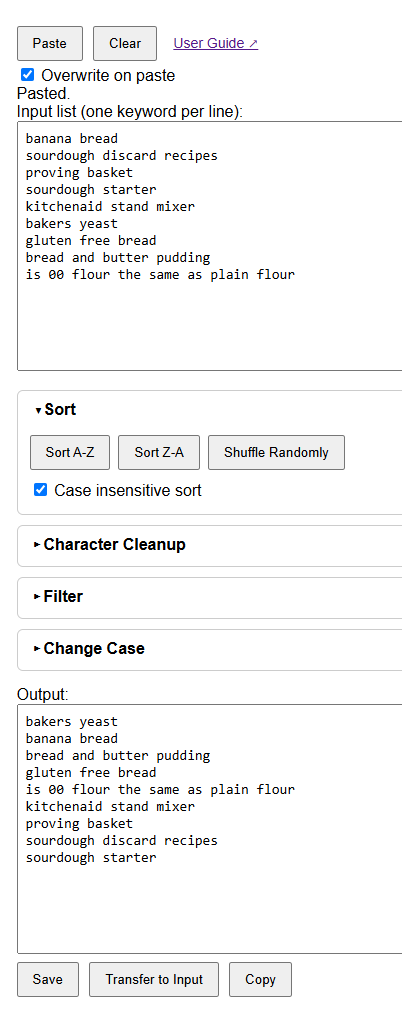
There’s one important limit. Keyword Scrubber treats only the plain letters A to Z as letters, so accented letters count as symbols and get stripped. ‘crème pâtissière recipe’ would come out as ‘crme ptissire recipe’, which is wrong. The same goes for other writing systems: a keyword in Greek, Cyrillic, Arabic or Chinese would lose every letter, so the strip is only suitable for lists written in the English alphabet. If your list has accented keywords you want to keep, take them out before the strip and add them back afterwards. Use Exclude lines containing filter on the accented letter to get the list without them.
The strip doesn’t close up gaps, either. A symbol with a space either side leaves two spaces behind, so ‘bread & butter pudding’ would become bread butter pudding. That’s one more reason to replace ampersands in Step 2. It also leaves a non-breaking space in the middle of a line where it is, because it counts as a space, so fix those in the spreadsheet first. On the plus side, the strip does remove zero-width spaces, a common invisible leftover from web pages.
The strip also removes apostrophes, so ‘baker’s yeast’ becomes ‘bakers yeast’. For most keyword research that’s fine, and it means both spellings end up identical. If you’d rather keep them, leave those lines out of the strip in the same way.
Check the result
Sort the clean list A to Z and read it from top to bottom. Here’s how the baking list should end up:
- bakers yeast
- banana bread
- bread and butter pudding
- crème pâtissière recipe
- gluten free bread
- is 00 flour the same as plain flour
- kitchenaid stand mixer
- proving basket
- sourdough discard recipes
- sourdough starter
Look out for joined-up words where a hyphen or ampersand was deleted instead of replaced, numbers left over from list formatting and words with letters missing, which usually means an accent was stripped. Then check for duplicates. Lines that looked different before the clean-up, such as two versions of ‘baker’s yeast’, may now be identical. The free edition of Keyword Scrubber doesn’t remove duplicates, so use Remove Duplicates in your spreadsheet for this. If your list came from Keyword Planner, our guide to cleaning a Keyword Planner export covers the rest of the job, from unwanted columns to duplicates.
About the author
Glenn Leader is a web publisher and SEO practitioner based in Kent, and has worked online since 2004. He builds the free keyword and text tools here on PhraseFoundry. You can find more of his work at GlennLeader.com.
1 thought on “How to Remove Special Characters from a Keyword List”
Comments are closed.