A keyword list rarely arrives clean. It comes out of research tools such as Google Keyword Planner with stray spaces, odd symbols, mixed case and lines you don’t want. Keyword Scrubber is a free tool that helps you clean a keyword list in a few clicks, right here in your browser. This guide covers every button.
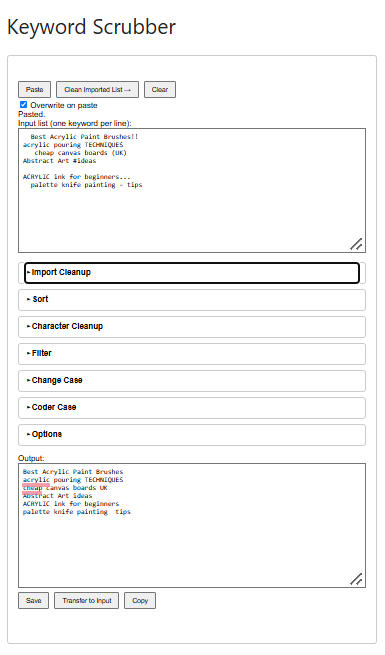
A messy list goes in at the top, and cleaned results
come out below.
How It Works
Every tool follows the same pattern. Your list goes in the Input box, one keyword per line. You click a button, and the result appears in the Output box. Your original list stays untouched in the Input box, so you can try something, see the result, and try something else.
The tools sit in collapsible sections. Click a section’s heading to open it, and click again to close it.
Blank lines are dropped automatically whenever you click a button, so you never need to remove them yourself.
Everything runs in your browser. Your list is never uploaded or sent anywhere.
Getting Your List In
- Copy your keyword list from wherever it lives: a spreadsheet, another keyword tool or a text file.
- Click Paste. The first time, your browser may ask permission to read your clipboard. Click Allow.
- If your browser blocks clipboard access, the Input box is selected for you and a message appears. Press Ctrl+V (Cmd+V on a Mac) to paste by hand.
Overwrite on paste is ticked by default, so each paste replaces what’s already there. Untick it to add each new paste to the end of the list instead, which is handy for combining lists from several sources.
You can also type or paste straight into the Input box. Click Clear to empty it and start again.
Sort
- Sort A-Z and Sort Z-A put the list in alphabetical order, in either direction.
- Shuffle Randomly mixes the list into a random order.
- Case insensitive sort is ticked by default, so ‘Apple’ and ‘apple’ sort together. Untick it and capitals sort ahead of lowercase letters.
Character Cleanup
- Remove non-alpha characters keeps letters and spaces only. Numbers and symbols go.
- Leave only non-alpha characters does the opposite and removes the letters.
- Remove non-numeric characters keeps numbers and spaces only.
- Leave only non-numeric characters removes the numbers and keeps everything else.
- Remove leading and trailing spaces tidies up stray spaces at the start and end of each line.
- Keep letters and numbers only (strip symbols) removes punctuation and symbols but keeps numbers. Tick Also strip numbers to remove those too.
One thing to watch: these tools treat only the plain letters A to Z as letters. Accented letters such as é or ü count as symbols and will be removed.
Filter
Type a word or phrase into the Filter text box, then click:
- Show only lines containing filter to keep just the matching lines, or
- Exclude lines containing filter to remove them.
The filter matches anywhere in a line, so ‘tool’ also matches ‘tools’ and ‘toolkit’. Tick Case sensitive filter if capitals should count.
Change Case
- UPPERCASE and lowercase convert every letter.
- Title Case capitalises the first letter of every word.
- Sentence case capitalises the first letter of each line, and the first letter after a full stop, question mark or exclamation mark.
- tOGGLE cASE flips every letter: capitals become lowercase and lowercase becomes capitals. Unlike the other buttons, it also writes its result back into the Input box, so pressing it again flips the list back.
- Random Case makes each letter randomly upper or lower case.
Getting Your Results Out
- Save downloads the output as a text file called keyword-list.txt.
- Copy copies the output to your clipboard.
- Transfer to Input moves the output back into the Input box, ready for the next step.
How to Clean a Keyword List Step by Step
Most real clean-ups take more than one step. Use Transfer to Input between them. For example, to clean a keyword list exported from a research tool:
- Paste the list, then click Keep letters and numbers only.
- Click Transfer to Input, then Remove leading and trailing spaces.
- Click Transfer to Input, then lowercase.
- Click Transfer to Input, then Sort A-Z, and Copy or Save the result.
The Full Version
The full version of Keyword Scrubber runs on your own computer, works offline and adds:
- Import Cleanup: remove duplicates, strip header rows and extra columns (search volume, CPC and so on) from exported lists, and a one-click Quick Clean that does all of it at once.
- Coder Case: nine formats for code, filenames and URLs, including camelCase, PascalCase, snake_case and kebab-case.
- Options: keep just one section open at a time.
It comes with a course that shows how the whole tool was built with AI, from a rough first prompt to the finished file, mistakes included.